
Laptop camera not working (We can't find your camera): causes and fix
Quick answer: On most laptops the camera is blocked by a privacy shutter, an F-key or Windows privacy settings; check the shutter and camera key first, then allow camera access in Settings.
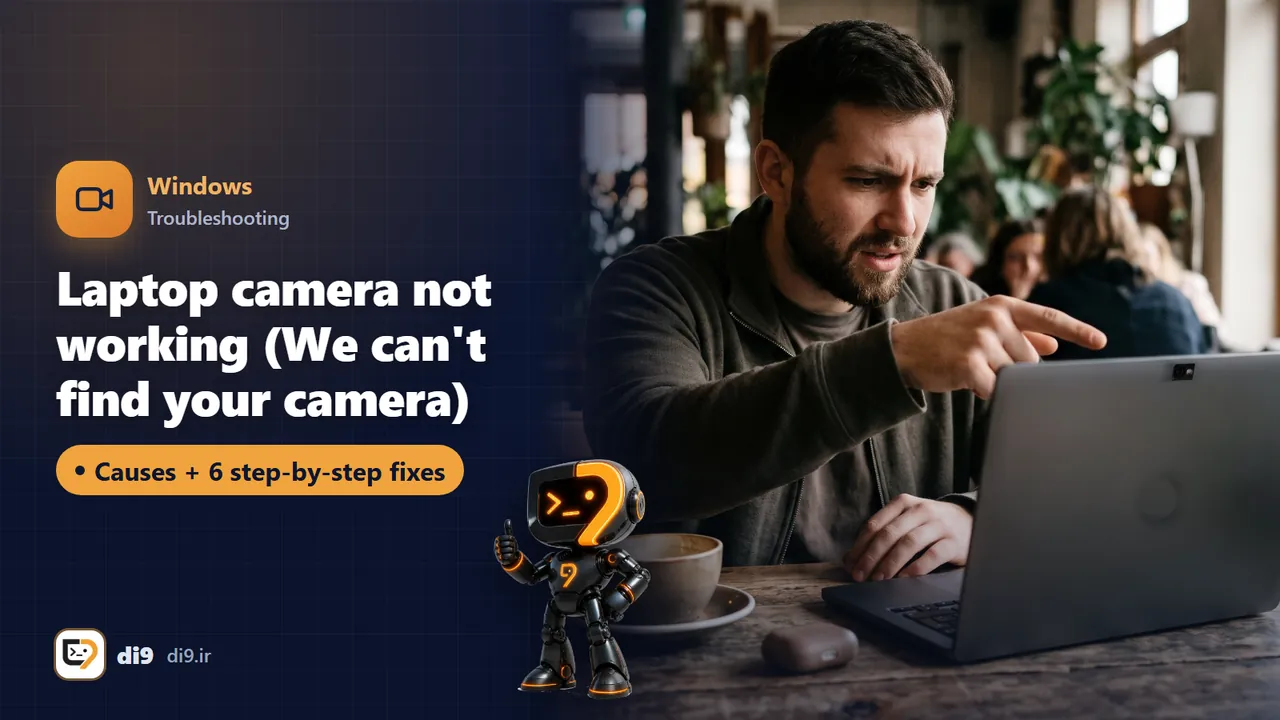
Symptoms
- "We can't find your camera" with error code 0xA00F4244 in the Camera app
- The camera image is completely black or shows a crossed-out camera icon
- "It looks like another app is using the camera already" with code 0xA00F4243
- The camera list is empty in Meet or Zoom
Likely causes
- The privacy shutter over the lens is closed, or the camera was switched off with a dedicated key
- Camera access is turned off in Windows privacy settings or in the browser
- Another app, such as a meeting left open in the background, is already using the camera
- The camera driver is broken or the camera is disabled in Device Manager
Step-by-step fix
Start from step one and test again after each step; steps go from the simplest to the most technical.
-
Check the shutter and camera key
Look at the top of the screen; many laptops have a tiny sliding shutter over the lens, and when it's closed you see a black or gray image. Some models also have a camera on/off key on one of the F keys or on the side; press it once.
-
Close other apps
Only one app can use the camera at a time. Fully quit Zoom, Skype, Teams and any meeting tabs in your browser (check the icons next to the clock too), or restart the laptop and try again.
-
Allow camera access in Windows
Go to "Settings > Privacy & security > Camera" (on older versions, "Settings > Privacy > Camera") and turn on "Camera access" and "Let apps access your camera"; for Zoom and browsers, also turn on "Let desktop apps access your camera". If your antivirus has a webcam protection feature, allow just that app instead of turning the antivirus off.
-
Allow the site in your browser
Click the icon next to the address bar, set "Camera" to "Allow" and reload the page. Use our free Webcam Test tool to check whether the camera shows a picture in the browser; if it works there, the problem is only in your meeting app's settings.
-
Check the camera in Device Manager
Right-click the Start button, open "Device Manager" and look under "Cameras" or "Imaging devices". If the camera has a down-arrow icon, right-click it and choose "Enable device"; if it has a yellow warning sign, choose "Uninstall device" and restart so it reinstalls.
-
Install the official driver
Open "Settings > Windows Update > Advanced options > Optional updates", where drivers usually appear. If there's nothing there, download the camera or chipset driver for your exact model from the laptop maker's website, not from random driver sites.
If nothing worked
If the camera doesn't appear anywhere in Device Manager (even after "View > Show hidden devices"), it's either disabled in the BIOS/UEFI settings or its internal cable is disconnected; only change BIOS settings following the manufacturer's official guide, and leave the rest to a reputable repair shop.
In the meantime, a basic USB webcam is a quick workaround.
Don't install "driver updater" or "webcam fixer" tools from unknown sites.
Frequently asked questions
The camera light is on but the picture is black. Is it broken?
Not necessarily; the light means the camera is powered on. Usually the privacy shutter is closed or the app has picked another camera (like a virtual camera), so choose the built-in camera in the app's video settings.
Can someone use my camera without me knowing?
Normally the light next to the camera turns on whenever it's in use, and Windows camera settings list the apps that recently accessed it. If you see an unknown app, remove it and run an antivirus scan; closing the shutter is the simplest protection.
Related problems
Microphone not working on Windows laptop
Usually the mic itself is fine, but Windows or your browser hasn't been given access to it, or the wrong input is selected; check microphone permissions and the input device first.
USB Device Not Recognized
"USB device not recognized" usually points to a bad port, cable or stuck driver, so try another port and, for a flash drive or disk, look for it in Disk Management.
Laptop keyboard not working or typing wrong keys
Often the keyboard isn't broken: Filter Keys, Num Lock or Fn Lock, or the wrong Windows input language stops it typing or changes letters; restart first, then check these locks and the language.
Terms used on this page
More Windows & PC problems
Last updated: