
Blue Screen of Death (BSOD) on Windows: causes and fix
Quick answer: A blue screen means Windows stopped itself to prevent damage, almost always because of a driver, update or faulty RAM, so note the stop code and undo your last change.
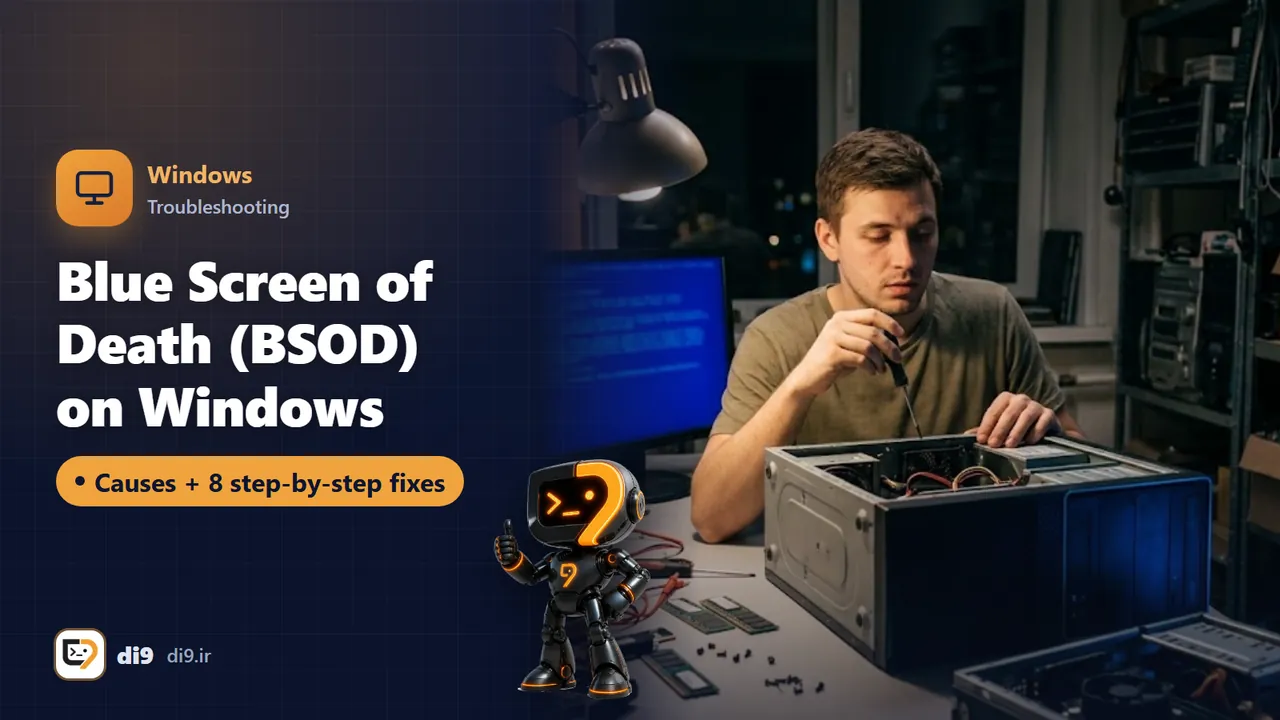
Symptoms
- A blue screen with a sad face and "Your device ran into a problem and needs to restart"
- A stop code such as IRQL_NOT_LESS_OR_EQUAL, PAGE_FAULT_IN_NONPAGED_AREA or CRITICAL_PROCESS_DIED
- The computer restarts without any warning
- The crash keeps happening during games or other heavy work
Likely causes
- A faulty or incompatible driver, especially for graphics or networking, after an install or update
- Bad or poorly seated RAM
- A failing hard drive or SSD that can't read system files correctly
- The processor or graphics card overheating
- An incomplete Windows update or malware
Step-by-step fix
Start from step one and test again after each step; steps go from the simplest to the most technical.
-
Write down the stop code
The crash screen shows a line like "Stop code: ..." in capital letters (on some recent Windows 11 builds the screen is black instead of blue). Take a photo of it; the code tells you whether to look at drivers or at RAM and storage. If a file name ending in .sys is shown, that's the driver involved.
-
Undo your last change
If the crashes started after you installed an app, driver or new hardware, remove it or disconnect the part. For a driver, right-click the device in Device Manager, choose "Properties", open the "Driver" tab and click "Roll Back Driver" if it's available.
-
Install official updates and drivers
Go to "Settings > Windows Update", click "Check for updates", then check "Advanced options > Optional updates", where drivers usually appear. Get graphics and chipset drivers only from your PC, laptop or graphics card maker's website, never from "driver updater" apps.
-
Test your RAM
Search the Start menu for "Windows Memory Diagnostic" and choose "Restart now and check for problems". The PC restarts and tests memory for several minutes; the result appears after you sign in. If errors show up, replace the RAM, or if you have two sticks, test with one at a time.
-
Check the drive and system files
Type cmd in the Start menu, right-click "Command Prompt" and choose "Run as administrator". Run sfc /scannow, then chkdsk C: /f, and press Y when it asks to run at the next restart. If chkdsk reports many errors, the drive is failing and you should back up now.
-
Keep temperatures under control
If crashes happen while gaming or rendering, clean the air vents and make sure all fans are spinning. Task Manager's "Performance" tab shows the temperature of a dedicated graphics card; readings above about 90°C under load point to a cooling problem.
-
Test in Safe Mode
If Windows won't start, turn the PC off three times in a row while the logo is showing to reach the recovery environment, then choose "Troubleshoot > Advanced options > Startup Settings > Restart" and press 4. If there's no blue screen in Safe Mode, the cause is a driver or app, not hardware.
-
Reset Windows as a last resort
If nothing else works and the RAM and drive tests came back clean, go to "Settings > System > Recovery" and run "Reset this PC" with "Keep my files". Warning: all apps are removed, and if the drive looks suspect, back up your files first.
If nothing worked
If blue screens continue even after a full reset, the problem is almost certainly hardware: RAM, the drive, the power supply or the motherboard. Show the stop code and your photo of the screen to a reputable repair shop or the manufacturer's support.
Until it's fixed, keep a backup of important files on a separate drive or in cloud storage.
Don't install "BSOD fixer" or "registry repair" tools; there is no magic fix for this, and most of them are adware.
Frequently asked questions
Does a blue screen delete my files?
The crash itself doesn't delete files; you only lose unsaved work from that moment. But if a failing drive is the cause, your files are at risk, so back up as soon as possible.
I got one blue screen and it never came back. Should I do anything?
A single crash usually isn't a cause for concern; install updates and note the stop code. If it happens again within a week, work through the steps above from the start.
Related problems
Computer Running Slow on Windows
A slow PC is usually caused by too many apps launching at startup or a nearly full C: drive, so turn off startup apps in Task Manager and free up space first.
Windows Update Stuck
Big Windows updates can sit on one percentage for up to an hour, but if nothing moves after that, restart, run the update troubleshooter and free up 20 GB on the C: drive.

100% Disk Usage in Windows
100% disk usage usually means a background task like indexing, a virus scan or an update is hammering the drive, so check the Disk column in Task Manager and rule out a failing HDD.
Terms used on this page
More Windows & PC problems
Last updated: