
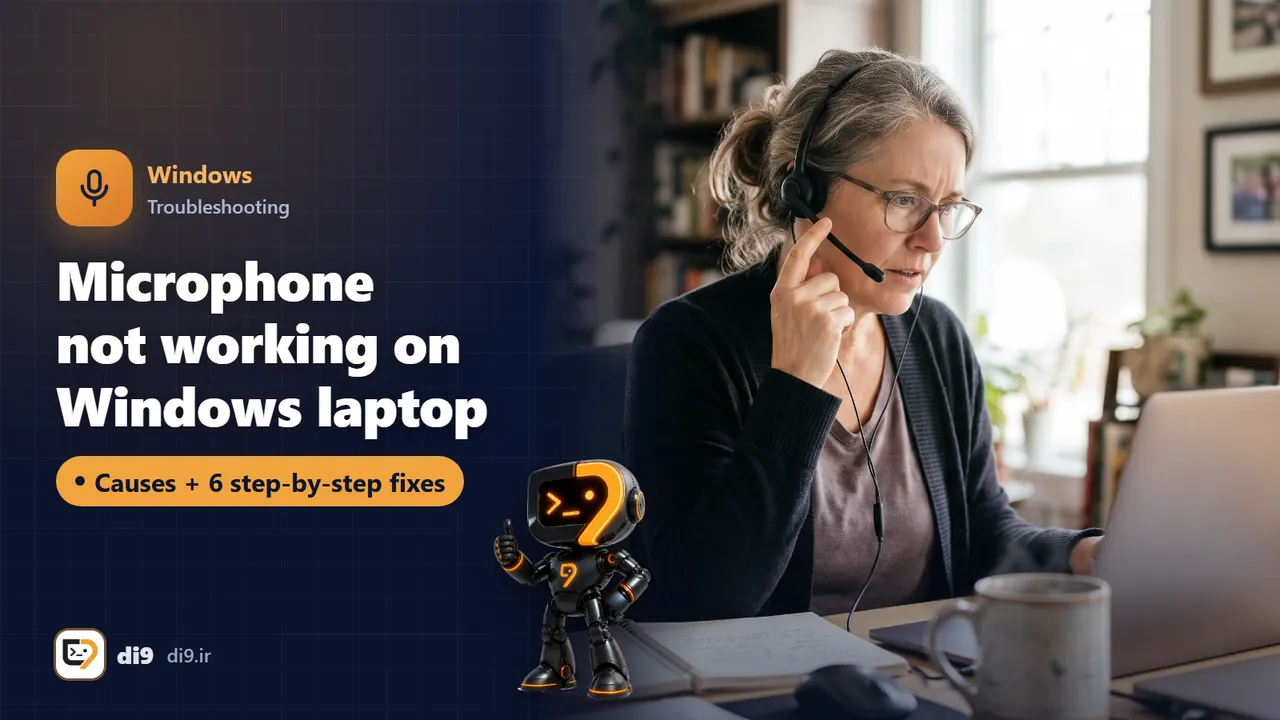
Microphone not working on Windows laptop: causes and fix
Quick answer: Usually the mic itself is fine, but Windows or your browser hasn't been given access to it, or the wrong input is selected; check microphone permissions and the input device first.
Symptoms
- People in Meet, Zoom or Skype calls can't hear you
- Windows sound settings show "No input devices found"
- The microphone level bar doesn't move when you speak
- A crossed-out microphone icon appears in the browser's address bar
Likely causes
- Microphone access for apps or desktop apps is turned off in Windows privacy settings
- The wrong input device is selected, such as a headset mic that isn't plugged in
- The mic is muted with a keyboard key, a headset button or inside the app itself
- The browser has blocked the microphone for that site
- A broken audio driver, or the headset is plugged into the wrong jack or using the wrong Bluetooth profile
Step-by-step fix
Start from step one and test again after each step; steps go from the simplest to the most technical.
-
Check the mute key
Many laptops have a mic mute key on one of the F keys (a crossed-out microphone icon), sometimes with a small light. Headsets usually have a mute button on the cable or earcup too. In your meeting app, make sure the mic icon isn't red or crossed out.
-
Select the right input device
In "Settings > System > Sound", under "Input", pick the microphone you're actually using and speak to see the level bar move. Pick the same mic in the audio settings of Meet or Zoom, since apps can keep their own input selection separate from Windows.
-
Allow microphone access in Windows
Go to "Settings > Privacy & security > Microphone" (on older versions, "Settings > Privacy > Microphone"). Turn on "Microphone access" and "Let apps access your microphone", and for Zoom and browsers also turn on "Let desktop apps access your microphone".
-
Allow the site in your browser
Click the icon next to the address bar, set "Microphone" to "Allow" and reload the page; if you clicked "Block" before, the browser won't ask again. Use our free Microphone Test tool to see whether sound is recorded at all, so you know if the problem is the site or the mic.
-
Connect the headset correctly
Headsets with a single four-ring plug only work in a combined headphone/mic jack or through a splitter adapter, not in an old pink mic jack. For a Bluetooth headset, choose the input labeled "Hands-Free" or "Headset" under "Input"; lower playback quality in that mode is normal.
-
Reinstall the audio driver
Right-click the Start button, open "Device Manager", expand "Audio inputs and outputs", right-click the microphone and choose "Uninstall device", then restart so Windows reinstalls it. If that doesn't help, get the audio driver for your exact laptop model from the manufacturer's website only.
If nothing worked
If the Microphone Test tool records nothing but another headset or USB mic works fine, the built-in mic or its cable in the laptop hinge is damaged, and that's a job for a reputable repair shop or the manufacturer.
Until then, a basic headset or USB microphone is the quickest workaround.
Don't install "mic booster" or "driver updater" apps from unknown sites; get drivers only from Windows Update or the manufacturer.
Frequently asked questions
Why does my mic work in one app but not another?
That means the hardware is fine and the problem is that app's permission or settings. Select the correct mic in the app's audio settings and check that the app is allowed in Windows privacy settings.
My voice is very quiet or noisy. What can I do?
In "Settings > System > Sound", click your microphone and raise "Input volume". Built-in mics also pick up fan and typing noise, so a headset with a boom mic near your mouth usually beats any setting.
Related problems
Laptop Sound Not Working
Usually the sound isn't gone but is going to the wrong output, like an HDMI monitor or Bluetooth earbuds, so click the speaker icon and switch back to your laptop speakers.
Bluetooth Not Connecting on Phone
Most often a corrupted pairing or the device being connected to another phone is to blame; forget the device in Bluetooth settings, restart both devices and pair them again.
Laptop camera not working (We can't find your camera)
On most laptops the camera is blocked by a privacy shutter, an F-key or Windows privacy settings; check the shutter and camera key first, then allow camera access in Settings.
Terms used on this page
More Windows & PC problems
Last updated: