
USB Device Not Recognized: causes and fix
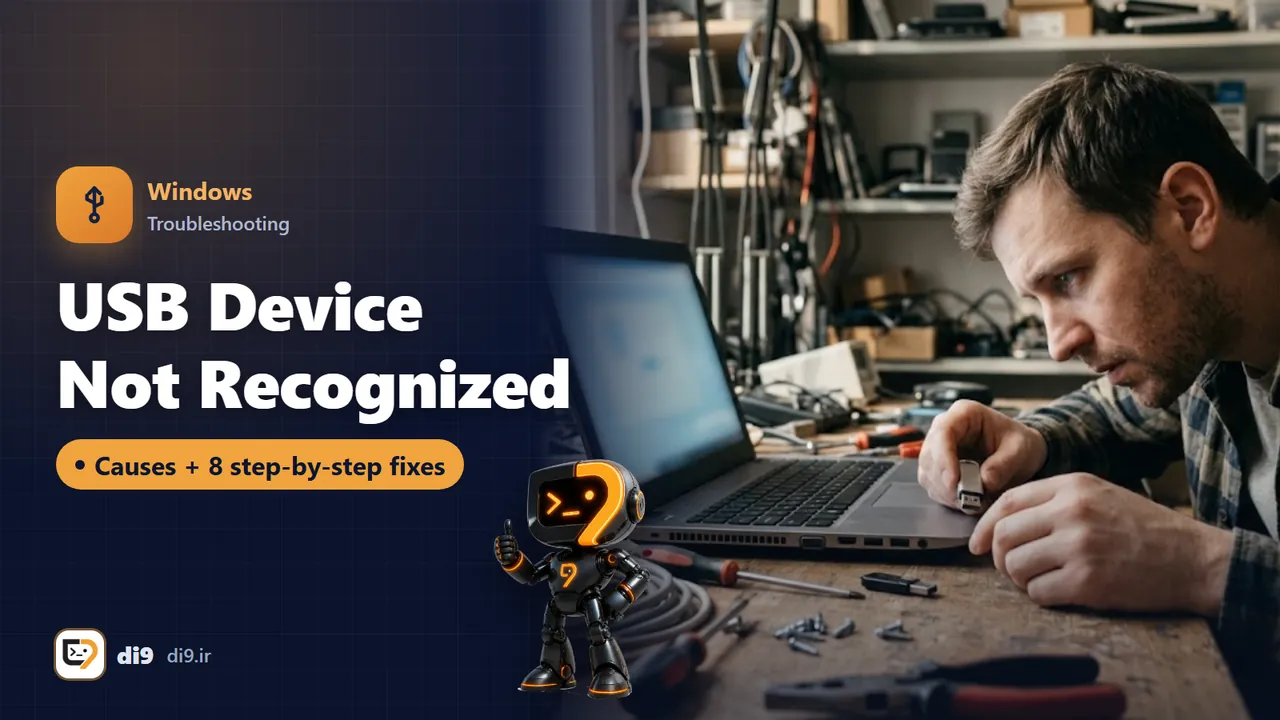
Quick answer: "USB device not recognized" usually points to a bad port, cable or stuck driver, so try another port and, for a flash drive or disk, look for it in Disk Management.
Symptoms
- "USB device not recognized" or "The last USB device you connected to this computer malfunctioned"
- A flash drive or external disk lights up but doesn't appear in This PC
- You hear the connect sound but no drive shows up
- The device works in one port but not another
Likely causes
- The USB port or cable is damaged or dirty, or a USB hub isn't supplying enough power
- The USB driver or the device's own driver is stuck or corrupted
- The drive has no drive letter or its partition isn't recognized
- Windows powers down the USB port to save energy
- The flash drive or external disk itself is physically damaged
Step-by-step fix
Start from step one and test again after each step; steps go from the simplest to the most technical.
-
Try another port and cable
Unplug the device and connect it to a different port, ideally one on the back of a desktop or directly on the laptop rather than a hub or dock. For external drives, try another cable; bad cables are the most common cause. Blow dust out of the port with compressed air.
-
Test on another computer
If the drive works on a different PC, the problem is your Windows install or port, so continue with the next steps. If it isn't recognized there either, the device itself is probably faulty; skip to the last step.
-
Fully power cycle the PC
Unplug the USB device, choose "Shut down", unplug the laptop charger or desktop power cable for 30 seconds, then turn it back on. This reinitializes the USB controller, which a normal restart doesn't always do. Plug the device in once Windows has loaded.
-
Reinstall the driver
Open Device Manager from the Start menu. If you see a device with a yellow icon or named "Unknown USB Device", right-click it and choose "Uninstall device", then unplug and reconnect the device so Windows reinstalls the driver. For drives, also check the "Disk drives" section.
-
Turn off USB power saving
In Device Manager, expand "Universal Serial Bus controllers" and double-click each "USB Root Hub". On the "Power Management" tab, uncheck "Allow the computer to turn off this device to save power". On laptops this setting can leave a port off after it has been idle.
-
Look in Disk Management
Right-click the Start button and open "Disk Management". If the drive is listed but has no letter, right-click it, choose "Change Drive Letter and Paths", click "Add" and pick a letter. If it shows as "Unallocated" or "RAW", the files may still be there but the partition is damaged; don't format it, and if the data matters, look into data recovery.
-
Update Windows and chipset drivers
Go to "Settings > Windows Update", click "Check for updates" and also review "Optional updates". If no USB port works at all, download the chipset driver from your laptop or motherboard maker's website. Don't use third-party "driver updater" apps.
-
Accept physical failure
If the device isn't recognized on any computer, gets hot, or an external hard drive clicks, it's physically damaged. Warning: if it holds important data, stop plugging it in and don't keep trying formats or "repair" tools; every attempt lowers the chance of recovery. Take it only to a reputable data recovery lab.
If nothing worked
If, after all these steps, no USB device works in any port, the USB controller on the motherboard is probably faulty and needs a repair shop; in the meantime, a powered USB hub or a USB-C port (if you have one) may work.
Before formatting a flash drive or disk, make sure you have another copy of the files; formatting erases everything.
Don't download unknown "USB repair" or "free recovery" tools; many don't work or come bundled with adware.
Frequently asked questions
Are the files on an unrecognized flash drive lost?
Not necessarily. If the problem is the port, driver or drive letter, the files are completely fine. Even with a damaged (RAW) partition, data is usually recoverable as long as you don't format the drive.
Why does my flash drive work on my TV or car but not in Windows?
Usually the problem is the Windows USB driver or a missing drive letter, not the drive itself, so work through the Device Manager and Disk Management steps. If the drive is formatted with something other than FAT32, exFAT or NTFS, Windows can't read it.
Related problems
Laptop Sound Not Working
Usually the sound isn't gone but is going to the wrong output, like an HDMI monitor or Bluetooth earbuds, so click the speaker icon and switch back to your laptop speakers.
Computer Running Slow on Windows
A slow PC is usually caused by too many apps launching at startup or a nearly full C: drive, so turn off startup apps in Task Manager and free up space first.
Windows Update Stuck
Big Windows updates can sit on one percentage for up to an hour, but if nothing moves after that, restart, run the update troubleshooter and free up 20 GB on the C: drive.
Terms used on this page
More Windows & PC problems
Last updated: