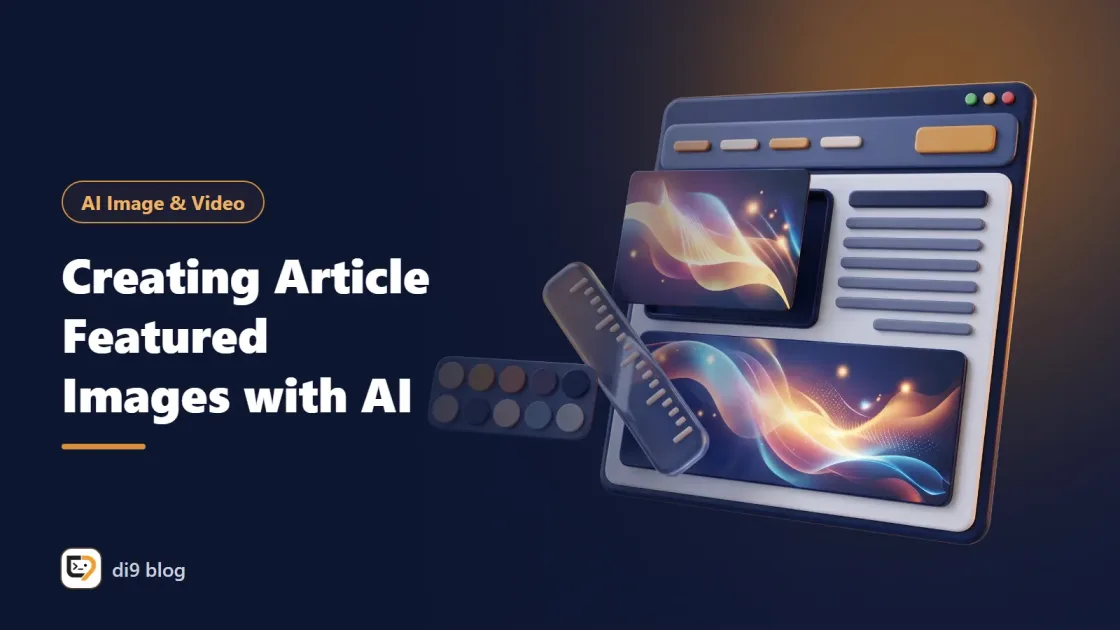
The featured image is the first thing a reader sees of your article: in article lists, in search results and in a link preview sent in a messenger. Yet most blogs make one of three mistakes: a repeated stock photo, an AI image with a headline that has typos, or a file many times heavier than it needs to be.
This article describes the method the di9 blog itself uses. None of the steps depend on a specific tool.
What makes a good featured image?#
A good featured image stays readable at small sizes, relates to the topic, matches the site's other images and loads light. A featured image is the image a content management system shows as the article's representative in lists, on the article page itself and in social media previews.
| Property | Why it matters |
|---|---|
| Readable at small size | In article lists and on mobile, the image appears several times smaller |
| Relevance to the topic | An unrelated image reduces reader trust |
| Consistency with the rest of the site | The article list should look like a collection, not a collage |
| Typo-free headline | A typo in the biggest text on the page gets noticed |
| Small file size | A heavy image slows every page that displays it |
Why not let the model write the headline on the image?#
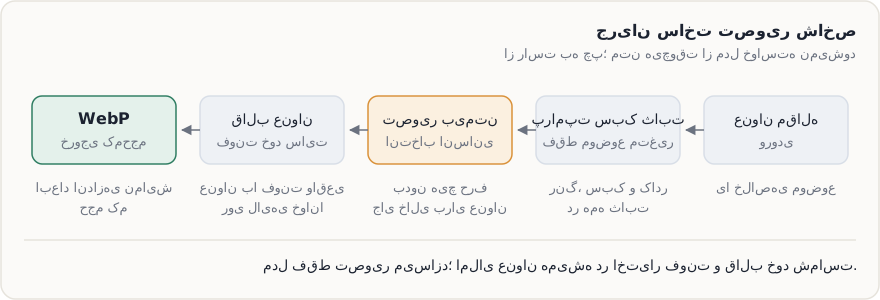
Because image models don't write text reliably, especially non-Latin text; so get the image from the model and add the headline yourself in your site's font. We explained the technical reason in AI image generation: prompts, style and text in images. The whole flow looks like this:
Step 1: How do you build a fixed prompt template?#
A fixed prompt template is text where the style, color and composition are written once, and for each article you only fill in the subject. This template guarantees consistency:
Flat, calm illustration with a limited palette: navy, cream and one orange accent color.
Clean lines, no busy texture, soft light.
Subject: [the scene specific to this article]
Composition: subject in the left half of the frame; right half plain and uncluttered for the headline.
Landscape aspect ratio.
No text, letters, numbers, logos or real faces.
Two things matter in this template. First, the empty space on one side; it keeps the headline readable over a plain background (for a left-to-right language you can mirror the layout and keep the empty space on the left or right as your design needs; for right-to-left languages like Arabic the headline starts from the right, so keep the right side empty). Second, the last sentence; without it, the model sometimes puts meaningless letters in the corners.
Step 2: How do you get from the article title to the image scene?#
Ask a text assistant to suggest a few simple visual metaphors for the article's topic, and choose one. A featured image doesn't need to say everything in the article; one striking idea is enough.
Article title: "[Title]"
Suggest three simple visual ideas for this article's featured image.
Each idea in one sentence, using only objects and scenery, with no text and no people.
Avoid clichés like a glowing brain or a humanoid robot.
The last line has the biggest effect. Without it, half the images for AI topics become a glowing blue brain. Put the chosen idea in the "subject" slot of the Step 1 template, generate several results and pick the best one yourself.
Step 3: How do you put the headline on the image?#
Build a fixed HTML template that uses the image as the background and writes the headline over it in your site's font, then take a screenshot of that page. The template is built once and works for every article. What it should have:
- Fixed dimensions, exactly equal to the final image
- The model's image as the background
- The headline on one side, in the site's own font, at most three lines
- Automatic font-size reduction for long titles
- A semi-transparent layer behind the headline so it stays readable over any image
A headless browser is enough to produce the output. This Node script with Playwright takes the title and image name, fills {{TITLE}} and {{BG}} in the template and screenshots the page:
import { chromium } from 'playwright';
import { readFileSync, writeFileSync } from 'node:fs';
import { resolve } from 'node:path';
import { pathToFileURL } from 'node:url';
const [title, bg, out = 'cover.png'] = process.argv.slice(2);
const esc = (s) => s.replace(/[&<>"]/g, (c) => ({ '&': '&', '<': '<', '>': '>', '"': '"' }[c]));
const html = readFileSync('cover-template.html', 'utf8')
.replace('{{TITLE}}', esc(title))
.replace('{{BG}}', esc(bg));
writeFileSync('cover-filled.html', html);
const browser = await chromium.launch();
const page = await browser.newPage({ viewport: { width: 1200, height: 675 } });
await page.goto(pathToFileURL(resolve('cover-filled.html')).href);
await page.evaluate(async () => { await document.fonts.ready; });
await page.screenshot({ path: out });
await browser.close();Change the viewport dimensions to match your theme's featured image size. The document.fonts.ready line matters: without it, the screenshot may be taken before the font loads and the headline comes out in a default font. If you're not comfortable with code, the same job can be done in any design tool with a saved template.
Step 4: How do you make the output light?#
Convert the image to WebP and lower the quality until the loss isn't visible. With the cwebp command-line tool:
npm install playwright
npx playwright install chromium
node cover.mjs "Article title" bg.png cover.png
cwebp -q 80 cover.png -o cover.webp
Tune the quality number by eye; for flat illustration you can usually go lower. If you do the conversion on the server with PHP, see image processing with GD. We also covered how image weight affects the whole site's speed in speeding up WordPress.
What are the common mistakes?#
The most common mistakes come from haste, not from the tool:
- A headline that's too long on the image: if the article title is long, put a shortened version on the image.
- Ignoring cropping: some themes and social networks crop the image's corners; keep the headline away from the edges.
- Changing style with every article: the result is an article list whose images don't match.
- No alt text: don't leave the featured image's alt empty; one descriptive sentence is enough.
- Publishing without a look at small size: view the image once at the list-card size.
Where are featured images heading?#
The direction is clear: more automated, multi-size and labeled with provenance. Content management systems are gradually bringing image creation into the publishing flow itself, an article needs separate versions for each place (site list, link preview, social network), and showing that an image was made with AI is becoming more common.
To get ready, keep three things separate from the tool: a style sheet (colors, type of illustration, composition), a headline template with title and image parameters, and a human selection step. Image tools change; these three keep your site's visual identity. Record the prompt and source for every image too; we wrote about why in copyright and commercial use of AI images.
Summary#
- Ask the model for the image, never the headline.
- Build a fixed prompt template with empty space on one side and change only the subject.
- Put the headline over the image in your site's font in a fixed template, and wait for the font to load.
- Save the output as WebP at its display size.
- Keep the style sheet, headline template and human selection independent of any tool.