
Google "Couldn't Verify It's You" Error: causes and fix
Quick answer: Google blocks sign-ins from a device, place or network it doesn't recognize, so try a phone or computer you've signed in on before, on your usual network, and wait a few days if it fails.
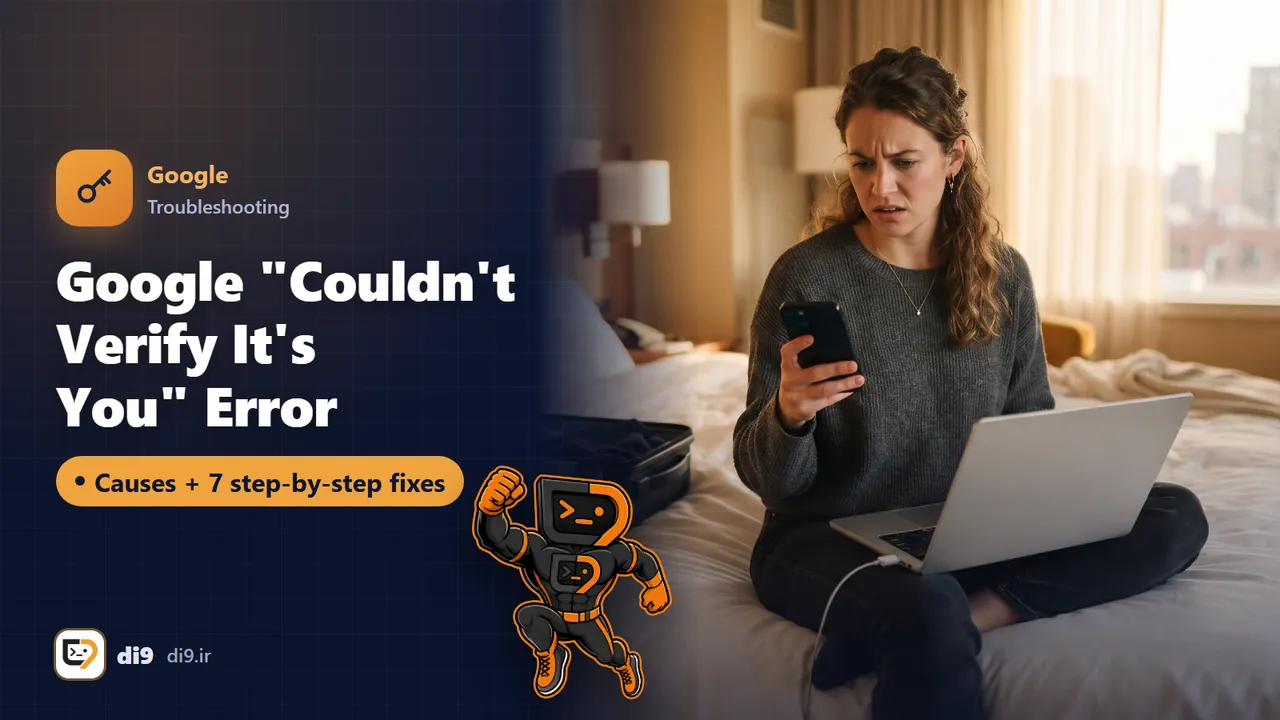
Symptoms
- "Couldn't verify it's you"
- "Google couldn't verify this account belongs to you"
- Google suggests trying again later, or from a device and location where you've signed in before
Likely causes
- Signing in from a device, browser or location Google hasn't seen with this account
- A VPN is on, so your sign-in location keeps changing
- The recovery phone or email is outdated or was never added
- Repeated attempts and wrong answers to recovery questions
- Recent suspicious activity on the account made Google stricter
Step-by-step fix
Start from step one and test again after each step; steps go from the simplest to the most technical.
-
Use a familiar device
Try from a phone or computer where you've signed in to this account before. Use your usual browser, not an incognito window.
-
Use your usual network
Try on the home or work Wi-Fi you normally sign in from. If a VPN is on, turn it off so your location looks familiar to Google.
-
Approve the phone prompt
If you're still signed in on an Android phone or in the Gmail app, look there for the "Is it you trying to sign in?" prompt and tap "Yes". If Google shows a number, tap the same number on your phone.
-
Try another way
On the sign-in screen, tap "Try another way" and get a code on your recovery phone or email. If you saved 2-Step Verification backup codes, enter one of them.
-
Make one complete attempt
Answer every question, and if you're unsure, give your closest guess rather than leaving it blank. One careful, complete attempt works far better than ten quick ones.
-
Wait a few days
If you still get the message, stop trying for a few days up to a week. Repeated attempts only make the account look more suspicious, and over time your device and network become more familiar to Google.
-
Update recovery info afterward
Once you're in, update your recovery phone and email under "Security" in your Google Account and get backup codes. This prevents the same problem next time.
If nothing worked
If it still fails after a week, even from a familiar device, go through Google's official account recovery page (accounts.google.com/signin/recovery) once, completely and carefully; Google offers no phone support for free accounts. Don't give your password or codes to sites or people offering to "unlock Gmail" for a fee. They either use the same official process or take over your account.
Frequently asked questions
My password is correct, so why won't Google let me in?
A correct password isn't enough on its own; when Google sees an unfamiliar device or location, it asks for extra proof to protect the account. If none of your verification options are available, it blocks the sign-in for now.
Has my account been hacked?
This message alone isn't a sign of hacking and usually comes from signing in on a new device or network. But if you got an alert about an unknown sign-in, change your password as soon as you're in and remove devices you don't recognize.
Related problems
Recover a Google Account
The only official route is Google's own recovery page. Start from a device and place you've used before, answer every question as well as you can, and don't skip any step.
Can't Sign In to Gmail
Most sign-in failures come from a wrong password, a 2-Step Verification code that never arrives, or an outdated browser. Try a device you've used before and tap "Try another way".
Google Account Disabled
Google disables accounts it believes broke its policies or were hacked, so sign in, download your data first if offered, and then submit a single, honest request to restore the account.
"This Phone Number Cannot Be Used for Verification" on Google
Google rejects numbers that are virtual or already tied to many accounts, so wait a day or two and sign up with your own SIM number, ideally from an Android phone rather than a PC.
Terms used on this page
More Google Account, Gmail & Play Store problems
All problems Google Account, Gmail & Play Store
Last updated: